Create a team
When you sign up for the first time, KeenTeam walks you through creating your first team automatically. If you want to add another team later, you can do that from the dashboard.
What you'll need
- A name for your team (you can change it any time)
- The sport you play
- Optionally, a logo — a square image works best
Step 1 — Create the team
From your dashboard, open the Add new menu and choose New team. Enter the team name and pick your sport, then tap Create team. That's it — your team is live.
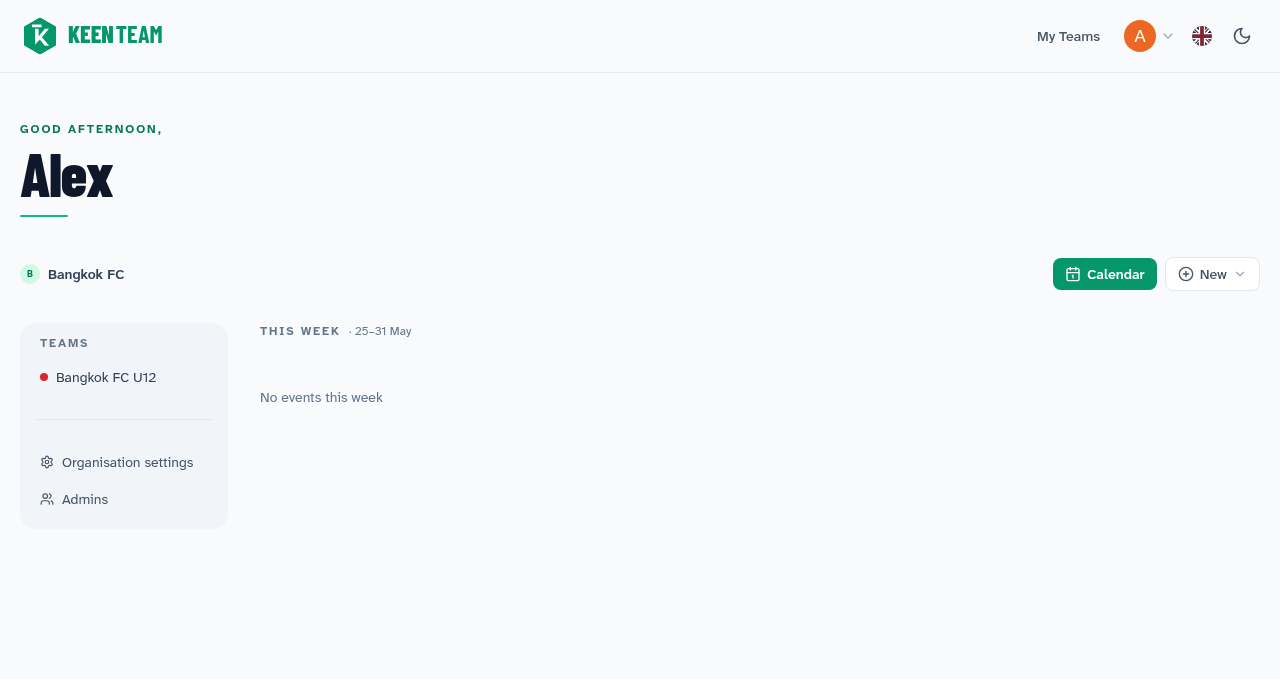
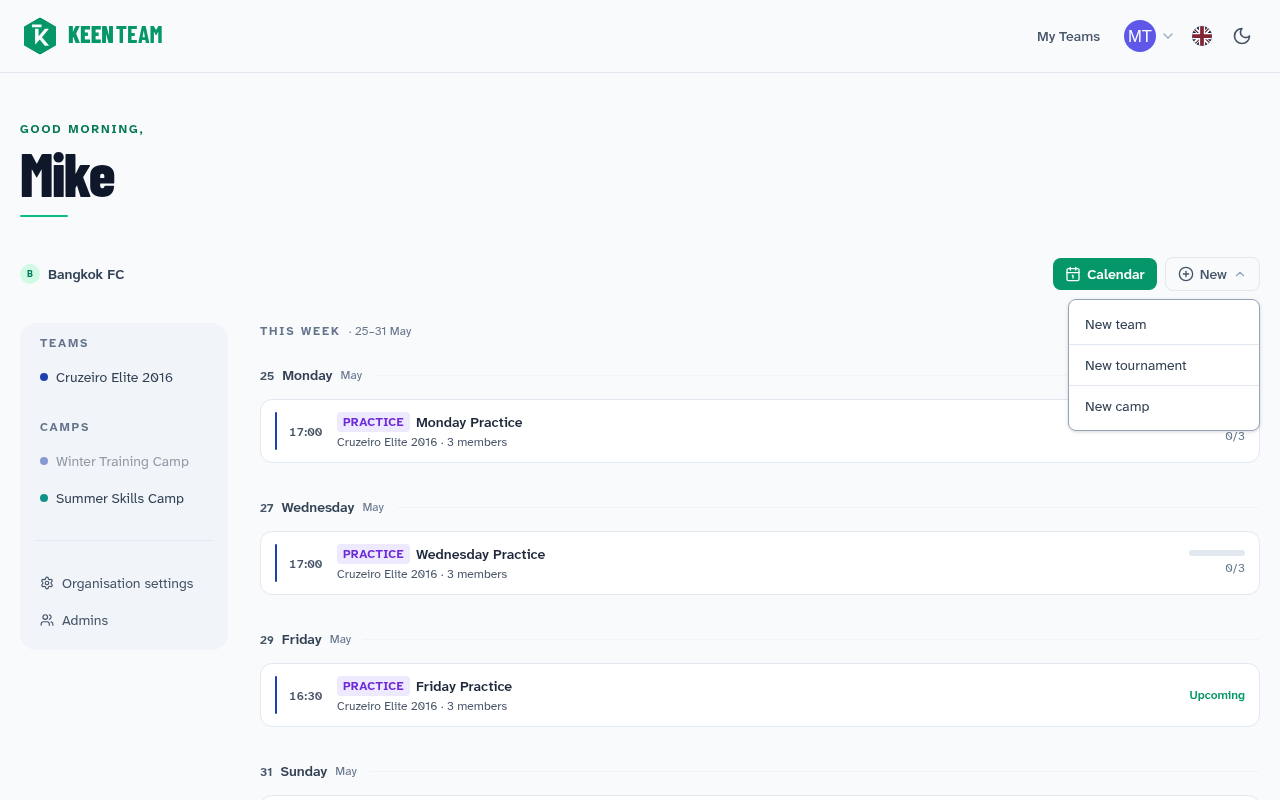
Tap the New button in the top-right corner of your dashboard to open this menu, then choose 'New team'
Step 2 — Share the invite link
Every team gets a unique invite link, shown on the team page. Send it to your players and their parents — via WhatsApp, SMS, or email, whatever you already use.
When someone taps the link, they're prompted to create a free account and are added to your team's roster instantly. No approval step required.
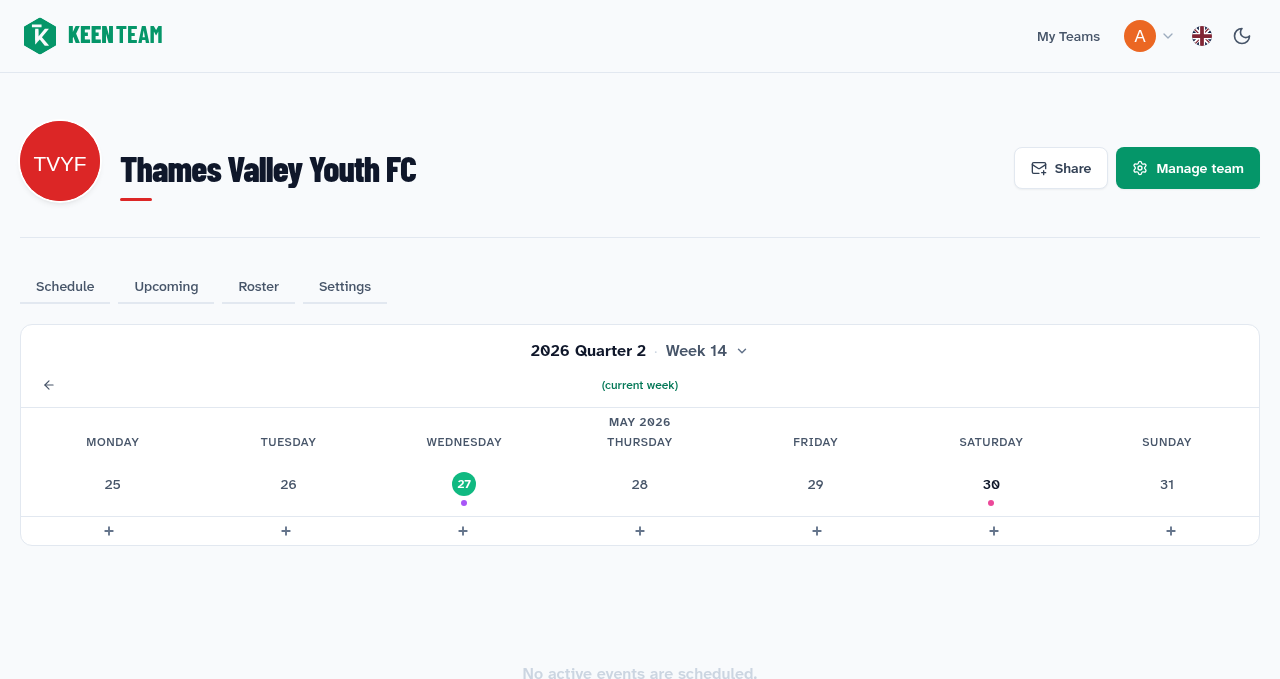
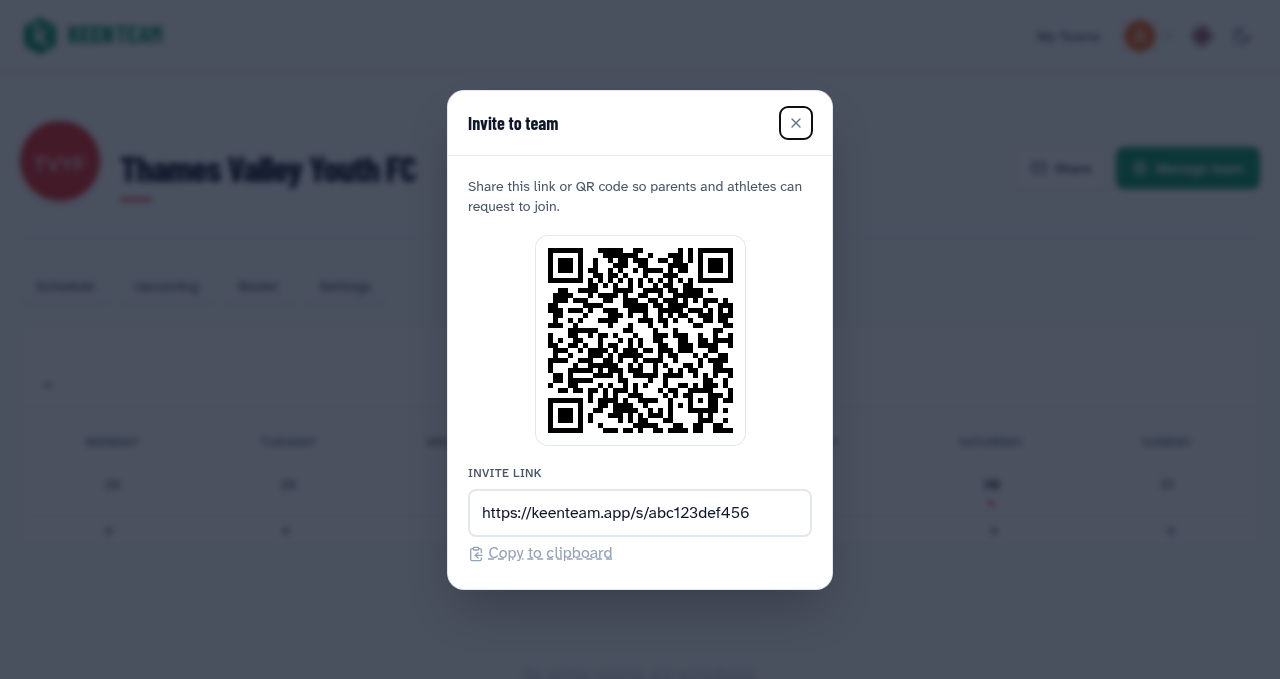
Your team's invite link — tap Share to open the invite panel, then copy the link and send it to your players
Step 3 — Check your roster
Once players start joining, you'll see them appear under Roster on the team page. Each player can be linked to one or more parents, who will also receive event notifications.
Adding a logo
On the team settings page, tap Logo to upload an image. The logo appears in the app header, on the team's public share pages, and in notifications. A square image at least 200×200px works best.